






Common GMC & Buick Infotainment Problems and How to Fix Them
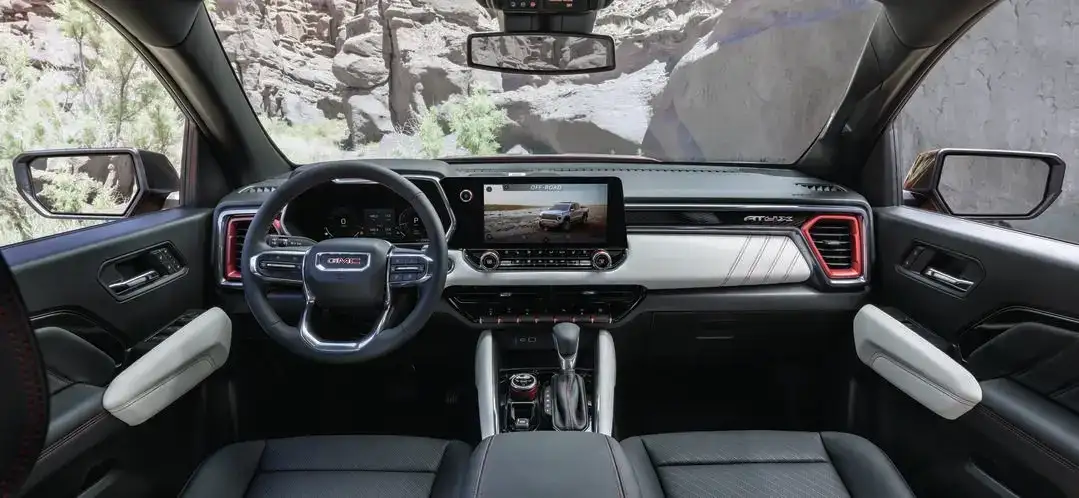
The touchscreen infotainment system is now the central interface for everything from navigation and music to climate control and vehicle settings in GMC and Buick vehicles. When it stops working correctly, it affects nearly every interaction you have with your car. Fortunately, most common infotainment problems in GMC and Buick vehicles have straightforward fixes, and many of them are things you can resolve yourself without a service visit.
This guide covers the most frequently reported issues, including frozen screens, black displays, CarPlay and Android Auto disconnections, Bluetooth pairing failures, blank backup cameras, and voice recognition failures, along with the specific steps to address each one.
Quick Reset: How to Reboot Your GMC or Buick Screen in 30 Seconds
The fastest fix for most infotainment problems is a soft reset. On virtually all current GMC and Buick vehicles, whether they run the GMC Infotainment System, the Buick Infotainment System, or the newer Google Built-In interface, the soft reset procedure is the same:
Press and hold the power button on the infotainment head unit for approximately 10 seconds. The screen will go dark and restart. On some vehicles, the power button is a dedicated physical button; on others, it is a touch-sensitive area at the edge of the screen. Hold it continuously without releasing until the screen powers off and then powers back on.
A soft reset does not erase your paired devices, saved favorites, or settings. It simply restarts the infotainment processor, which clears any software states that may be causing the malfunction. This fixes a significant percentage of frozen screen, unresponsive touch, and unexpected crash issues without any other intervention.
Give the system 60 to 90 seconds to complete the restart cycle. The infotainment display may briefly show a loading screen before returning to the home interface. If the problem returns after the restart, proceed to the next section.
Screen Frozen, Black, or Unresponsive: The 3 Fixes to Try First
A frozen or black screen is the most common reported infotainment problem in GMC and Buick vehicles. The three fixes in order of simplicity are:
First: soft reset (hold power button 10 seconds as described above). This resolves most temporary freeze and crash conditions.
Second: check for an available over-the-air software update. Many 2021 and newer GMC and Buick vehicles receive periodic software updates through the vehicle’s cellular connection. To check: navigate to Settings > System > Software Update (the exact path may vary by model year). An available update may include fixes for screen stability issues. Download and install if available and allow the vehicle to complete the update cycle with the engine running or in accessory mode.
Third: as a last resort only, disconnect the negative battery terminal with the ignition off, wait 15 full minutes, then reconnect. This forces a hard reset of all vehicle electronics, including the infotainment module. This procedure clears all saved settings, including paired Bluetooth devices, radio presets, and personalization settings. Only use this if the soft reset fails repeatedly and an OTA update is not available or does not resolve the issue. If the problem persists after a battery disconnection, the issue is likely hardware-related and requires a service appointment.
Apple CarPlay or Android Auto Keeps Disconnecting
Intermittent CarPlay and Android Auto disconnections are a common complaint in GMC and Buick vehicles and are usually caused by one of three issues: cable quality, device pairing cache, or software state.
Cable: if you are using a wired CarPlay or Android Auto connection, the USB cable is the most common culprit. Cables that are frayed, bent at the connector, or of non-certified third-party manufacture cause intermittent disconnections that mimic a software problem. Replace the cable with an Apple MFi-certified cable for CarPlay or a quality USB-A or USB-C cable for Android Auto and test again. This resolves the majority of wired disconnection issues.
Device pairing cache: on the infotainment system, go to Settings > Phone and delete your phone from the paired devices list. On your phone, go to Settings > Bluetooth, find the vehicle, and tap Forget. Then re-pair the phone from scratch. A stale pairing cache causes both Bluetooth audio drops and CarPlay or Android Auto instability.
Wireless CarPlay: if your vehicle supports wireless CarPlay and you experience frequent disconnections, try switching to wired temporarily to isolate whether the issue is with the wireless radio or with the CarPlay session itself. Wireless CarPlay is more sensitive to RF interference in certain environments, and a wired session that is stable while wireless is not indicates a wireless hardware or environment issue rather than a CarPlay software problem.
Bluetooth Won’t Pair or Keeps Dropping Calls
Bluetooth pairing failures and call drops during Bluetooth calls are related but distinct issues. For pairing failures, the most effective resolution is to clear the pairing on both sides: delete the vehicle from your phone’s Bluetooth list and delete your phone from the vehicle’s paired devices list, then re-pair from scratch in a clean pairing session. Put the infotainment into pairing mode (usually Settings > Phone > Add New Device) and initiate the pairing from your phone with Bluetooth scanning active.
If pairing succeeds but calls drop or audio cuts out during calls, check whether your phone case is blocking the phone’s microphone or antenna. A thick case around the phone’s upper edge can interfere with the cellular signal during a call being routed through Bluetooth hands-free audio. Also check that Do Not Disturb mode on your phone is not interfering with call audio routing.
Persistent Bluetooth instability after re-pairing, particularly on multiple devices, suggests a software issue with the Bluetooth module. Check for available OTA updates as described in the previous section, as GM has issued Bluetooth-specific software updates for several vehicle lines. If the issue continues after an update, it is worth flagging at your next service visit.
Backup Camera Shows Blank or Distorted Image (Is This the Recall?)
If your Buick Envista, Buick Encore GX, Chevrolet Trailblazer, or Chevrolet Trax is experiencing a blank or distorted backup camera image when shifted into reverse, this symptom may be covered under GM recall A262554900. This recall was issued in September 2026 and covers 2024-2025 Buick Envistas, 2024-2026 Buick Encore GXs, and the Chevrolet vehicles listed above.
Check your VIN at nhtsa.gov/recalls before assuming the issue is a software or hardware problem you need to resolve independently. If your vehicle is covered by the recall, the repair is performed at no cost by the dealer. See our companion article on the Buick rearview camera recall for full details on how to check your VIN and schedule the repair at Starling Buick GMC Stuart.
For backup camera issues on vehicles not covered by that recall, the diagnostic path includes checking the camera wiring harness connection (particularly common on vehicles with a trailer hitch, where harness flexing can cause intermittent connections), checking for corrosion at the camera module connector, and a software update check as described above. Camera issues that persist after a software update typically require a hardware inspection.
Voice Recognition Not Responding or Hearing You Wrong
GMC and Buick voice recognition uses both on-board processing and cloud connectivity depending on the command type and vehicle year. Common voice recognition problems fall into two categories: the system does not respond when activated, and the system responds but misinterprets commands.
For no response: confirm that the microphone indicator is active on the screen after pressing the voice button. If the indicator appears but the system does not respond to speech, check whether the vehicle is in a high-noise environment. Highway wind noise and heavy rain significantly degrade voice recognition performance. Try voice commands at lower speeds or in a quieter environment to isolate whether the issue is environment-related.
For misinterpreted commands: speak at a moderate pace with clear enunciation. Many voice command failures are caused by too-rapid speech or commands phrased in non-standard ways. Most GM systems respond well to the command structures listed in the voice recognition section of your owner’s manual. Common commands like ‘Navigate to [address]’, ‘Call [contact name]’, and ‘Tune to [station]’ follow consistent structures that the system handles reliably.
If voice recognition is consistently unresponsive or severely inaccurate regardless of environment or phrasing, a software update or dealer diagnostic may be needed. The microphone assembly can also fail and may require replacement if diagnostic testing confirms it is not functioning correctly.
When a Software Update Will Fix It, And How to Check Your Version
Many infotainment issues in 2021 and newer GMC and Buick vehicles are resolved through over-the-air software updates. GM pushes these updates through the vehicle’s embedded cellular connection, and the vehicle needs to be within cellular range and in park with the engine on or in accessory mode to receive them.
To check for and install an update: go to Settings in the infotainment menu, then System, then Software Update. If an update is available, it will appear here with the option to download and install. The download may take 15 to 30 minutes depending on file size and cellular signal strength. The installation phase requires a brief system restart and should be done with the vehicle in park.
To check your current software version, go to Settings > System > System Information. Your software version number will be listed here. If you are reporting an issue to your service advisor, this number helps the technician identify whether your vehicle is running the current release or an earlier version that a known fix may address.
Book an Infotainment Diagnostic at Starling Buick GMC Stuart
If the fixes described in this guide do not resolve your infotainment issue, or if your system is showing hardware-related symptoms that software resets cannot address, our service team at Starling Buick GMC Stuart can run a full diagnostic. We have access to GM’s diagnostic software tools, which read the infotainment system’s internal fault codes and identify whether the issue is software-related, hardware-related, or connected to the vehicle’s broader electrical system.
Infotainment system repairs for vehicles under the 3-year/36,000-mile bumper-to-bumper warranty are covered at no cost. If your vehicle is beyond warranty, we can provide a diagnostic estimate before proceeding with any repair. Our service team serves GMC and Buick owners throughout Stuart, Palm City, Jensen Beach, Hobe Sound, Port St. Lucie, and all of Martin County. Schedule online or call our service department.
Conclusion
Most infotainment problems in GMC and Buick vehicles have a practical, often self-service fix: a soft reset, a cable replacement, a re-pair of your Bluetooth device, or an over-the-air software update. Run through the steps in this guide before scheduling a service appointment and you will resolve the majority of common issues in under an hour. For problems that software and resets cannot fix, our diagnostic team at Starling Buick GMC Stuart is equipped to identify and address the issue correctly. And if you own a 2024 or 2025 Buick Envista or a 2024-2026 Encore GX and your backup camera is blank or distorted, check your VIN for recall A262554900 first. That specific symptom may be covered under a federal recall at no cost.
Frequently Asked Questions
How do I reset the infotainment on my GMC Sierra?
Hold the power button on the infotainment head unit for approximately 10 seconds until the screen turns off and restarts. This is the soft reset procedure and works on the Sierra and all current GMC vehicles. The reset does not erase your paired devices or saved settings. If the problem returns after the reset, check for an available software update under Settings > System > Software Update.
Why does my Buick screen go black while driving?
A screen that goes black while driving typically indicates a software crash, a power supply issue to the head unit, or a loose connection. Start with the soft reset (hold power 10 seconds). If the black screen recurs consistently, check for a software update. If the issue occurs intermittently and the soft reset only provides temporary relief, it may indicate a hardware issue with the head unit or its power connection, which requires a service diagnostic.
Can I update my infotainment system at home?
Yes, for 2021 and newer vehicles with embedded cellular connectivity. Go to Settings > System > Software Update in your vehicle’s infotainment menu. If an update is available, you can download and install it from there with the vehicle in park and the engine on or in accessory mode. You do not need to visit a dealer for OTA updates. For older vehicles without embedded connectivity, software updates require a dealer visit or a USB update process described in your owner’s manual.
Does disconnecting the battery reset the infotainment?
Yes, but this is a last resort. Disconnecting the negative battery terminal for 15 minutes forces a hard reset of all vehicle electronics, including the infotainment module. It clears all saved settings, paired Bluetooth devices, radio presets, and personalizations. Only use this method if the soft reset fails repeatedly and no software update is available. If the problem persists after a battery disconnection, the issue is likely hardware-related and requires a service appointment.
Is my infotainment problem covered under warranty?
If your vehicle is within the original manufacturer’s 3-year/36,000-mile bumper-to-bumper warranty, infotainment repairs are covered at no cost. Extended warranties may cover the system beyond that period depending on the specific coverage purchased. If your vehicle is out of warranty, a service diagnostic will identify the issue before any repair costs are quoted. Contact our service team to discuss your specific vehicle and coverage situation.
0 comment(s) so far on Common GMC & Buick Infotainment Problems and How to Fix Them